Setting Up Departments and Sub-Departments
Organize your ticket requests more effectively by creating departments and sub-departments for your team.
Permissions: Only Owners of the account are able to set up the department types.
Why Set Up Departments?
Setting up departments is essential if you want to use Artist Growth's Ticket Buy feature. When team members submit ticket requests, they'll need to select their department or sub-department before submitting their request.
How to Create Departments
Sound interesting? Here's how!
Step 1: Navigate to Department Settings
- Go to the gear icon
 in the upper left corner by your organization name
 - Then navigate to your Organization Settings
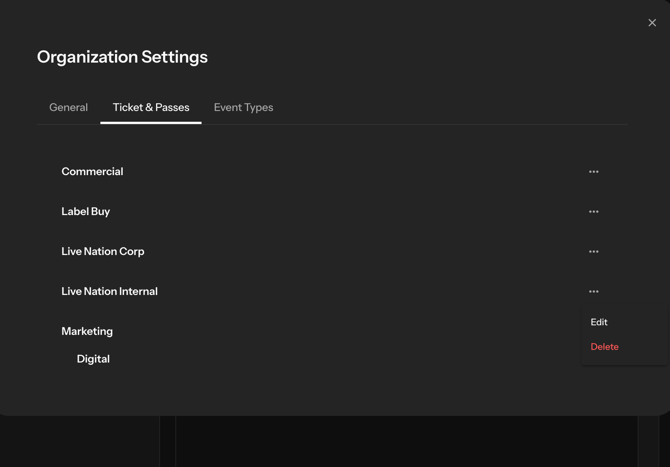
- From that screen, click on Tickets and Passes
- Then navigate to Departments
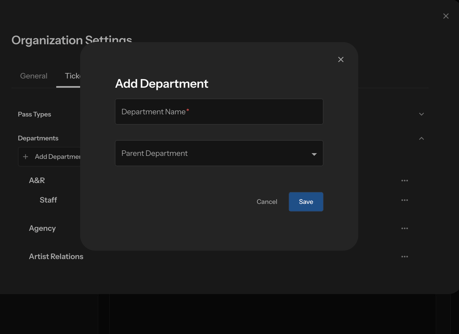
- Click + Add Department or edit an existing department by clicking the 3 dots to the right of the department you like to update
Step 2: Set Up Your Department
- Add a department name
- For Sub-Departments: You can indicate if this department is a sub-department by tapping on the is Sub-dept toggle, and finding the parent department you want it to be associated with from the drop-down menu
- Make sure to hit Save
You'll see your new department listed on your Departments page.
To Delete a Department
If you no longer have use for a specific department or sub-department:
- Click on the three little dots next to the department name
- Click Delete
- You'll be asked to confirm the deletion
- Click Yes, Delete to delete the department
You are only able to delete departments that do not have any existing/attached requests to them.