Adding Tasks to Projects
To add a task:
- Open your project
- Click the + Add Task button in the top right corner
- Fill in task details
Adding Subtasks to a Task
Break a task into smaller, checkable to-dos — right inside the project.
How it works
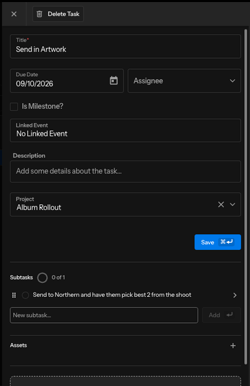
- Add or edit a task to open its details.
- Find the Subtasks section and add a new subtask, just like a regular task.
- Click into the subtask to fill in its own details.
- Check it off as you go — watch your progress build toward the overall task.
Bulk Task Import
Save Time by Importing Multiple Tasks at Once
Need to add dozens of tasks to a project? Skip the manual entry—you can now import all your tasks at once using a spreadsheet!
How to Import Tasks
Step 1: Navigate to a new or existing project
Step 2: Click on the 3 dots in the top right corner
Step 3: Select "Import Tasks" from the menu
Step 4: Upload your CSV or Excel file OR download our task template
Make sure your file matches the template format—this ensures the system can read your data correctly.
That's it! All your tasks will be added to the project in seconds, saving you tons of time on data entry.
What You Can Import
The import feature accepts:
- CSV files
- Excel documents (XLS, XLSX)
Note: Bulk task deletion is not currently supported. Tasks must be removed individually.
Task Statuses
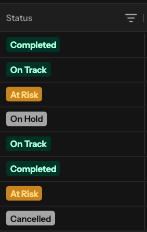
Your tasks move through four statuses:
- To Do: Task hasn't been started
- In Progress: Task is currently being worked on
- Needs Review: Task is ready for review
- Done: Task is completed
Task Categories
You can now organize your tasks by categories:
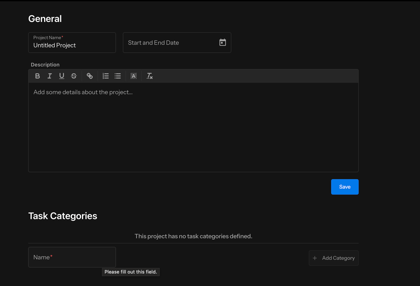
How to Add Task Categories to a Project:
- Navigate to the My Projects tab
- Click the + Add Project button in the top right corner
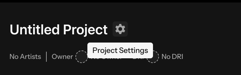
- Go to Project Settings by clicking the settings toggle next to the untitled project name
- Under the "General" section, find the Task Categories area
- Add your categories and click Save
Viewing Your Tasks
Board View
- Drag and drop tasks between status lanes
- Visual workflow management
List View
- Sort tasks by various details
- Detailed task information
Tip: To edit a task category within the task list view, double-click on its box.
How to Group and Save Your Task Views
What is Grouping?
Grouping lets you organize your tasks by dragging columns into rows, making it easier to narrow your focus/view to what matters most to you. Once you set it up, it will save this as your customized view.
Getting to Your Tasks
You can access your task grid in two ways in order to customize your view:
- From My Work – Go to the My Work tab, scroll down to find your task grid located underneath the My Work section
- You can also edit/add a task here to an existing project
- From a Specific Project – Navigate to the Projects tab, select the project you want to view, and click on the List View
How to Group Your Tasks
Step 1: Click on “Columns” on the right side of your task grid
Step 2: Click on the 6 dots next to the column item you’re want to group by
Step 3: Drag and drop that column into the "Row Groups" section
Step 4: After you drop it, the box will automatically uncheck itself. Make sure to re-check the box so your grouped column appears in your layout
Step 5: Your customized view is now saved and ready to use!
Why Group Your Tasks?
Grouping helps you focus on specific aspects of your work by organizing tasks in a way that makes sense to you—whether that's by status, assignee, due date, or any other column. Your saved view will be there whenever you need it, so you can get right to work without reorganizing every time.
Getting to Your Task Grid
You can access your tasks in two ways:
- From My Work – Go to the My Work tab and scroll down to your task grid underneath the My Work section
- From a Specific Project – Navigate to the Projects tab, select your project, and click on List View
How to Move Your Tasks
Moving a Single Task: Click and hold the 6 dots next to any task title, then drag it up or down to your desired position.
Moving Multiple Tasks at Once: Use the checkboxes on the far left side to select multiple tasks (they'll turn blue when selected), then drag them together to reorder them as a group.
That's it! Your new task order is automatically saved, so you can organize your work in whatever way helps you stay most productive.
Task Details
Note: Tasks linked to Events appear in both the Project and the Event's "Tasks" section.
Each task includes:
- Name
- Due Date
- Assignee (team member responsible)
- Linked Event (if applicable)
- Description
Task Grid
The task grid contains everything you need to see in one glance:
- Title
- Project Info: you can see which project the task is associated with
- Due Date
- Assignee
- Project
- Created By
- Name
- Linked Events
- Name
- Artist Date
Collaboration Features
Comments
- Add notes within a task using the "Add Comment" text box
- Keep task-related communication organized
- Now on the mobile, as well as, the desktop browser application!
Activity Feed
- View all updates made to a task in the "Activity" tab
- See complete task history
File Assets
- Add files to specific tasks that are needing to be shared with your team
Task Milestones
-
Tasks can now be marked as milestones within the task, for a visual indication they are an important part of a project.

Notifications
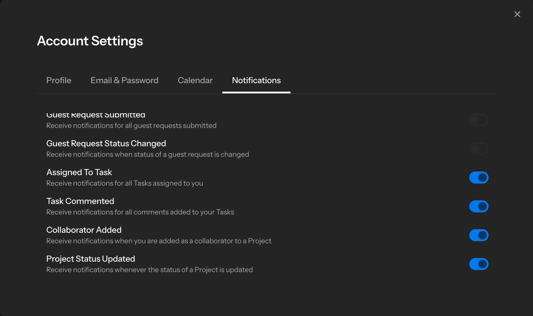
You'll receive email notifications for:
- Task assignments
- Comments on your tasks
- Being added as a Project Collaborator
- Status updates on your Projects
To Manage Task Notifications:
- Click your User Menu dropdown at the top right
- Select Account Settings
- Adjust your Notification Preferences