
This guide introduces you to our project management system, covering projects, templates, and tasks. Use the links throughout to dive deeper into specific features.
Accessing Projects
- Find Projects in the main navigation panel on the left side of your screen.
- Click it to view all projects you have access to.
Creating a New Project
- Go to the Projects page and click + Add Project in the top right corner.
- Fill in the required project details.
- Associate an artist with the project.
Note: To see more about an associated artist, click their name and select View Profile to go to their Artist page.
New projects are always private by default, even when created from a public template. This keeps you from accidentally announcing a project to your entire organization and gives you room to make changes before making it public.
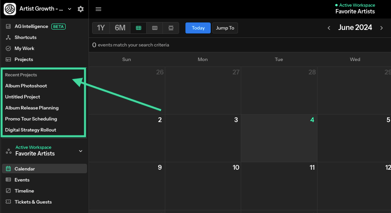
Recent Projects
The left side panel lists the projects you’ve visited recently, so you can jump back into active work without searching for it each time. Think of it as your “frequently used” shortcut: the projects you need most are always one click away.
Understanding Project Templates
Project templates save time and keep your work consistent by preserving effective project setups as reusable blueprints.
What templates do
- Preserve effective project setups as reusable templates for consistent workflow organization
- Maintain a collection of tested project layouts for quick setup of similar recurring initiatives
Template vs. Project
- Template = Master Blueprint. Contains the base structure, description, and standard tasks that serve as the foundation.
- Project = Instance of the Template. Uses the template as its starting point and inherits its description and tasks.
Project Template Creation
The visibility of a new template mirrors the visibility of the project it's created from — private projects produce private templates, and public projects produce public templates.
Learn more about creating and using templates →
|
Aspect |
📋 Template |
🚀 Project |
|
Purpose |
Master blueprint for reuse |
Working instance for execution |
|
Content |
Standard structure, base tasks, description |
Inherited + customized tasks, specific details |
|
Team Assignment |
No specific assignments until project is created |
Tasks assigned to team members |
|
Timeline |
No specific dates |
Specific due dates and milestones |
|
Modification |
Edited to improve future projects |
Customized for specific needs |
|
Location |
Templates tab |
Projects tab |
|
Status Tracking |
No progress tracking |
Full status and progress tracking |
Working with Tasks
Tasks are the building blocks of your projects, helping you break larger initiatives into manageable action items.
Adding Tasks to a Project
- Open your project.
- Click + Add Task in the top right corner.
- Fill in the task details.
Viewing Your Tasks
- Board View: Drag and drop tasks between status lanes to manage your workflow visually.
- List View: Sort tasks by their details for a more structured view.
Task Details
- Name: A clear task title
- Due Date: When the task needs to be completed
- Assignee: The team member responsible for the task
- Linked Event: Connects the task to a specific event, if applicable
- Description: Additional context and requirements
- Projects: The projects the task belongs to. You can group your tasks by project.
- Task Categories: Categories you create during project setup, used to organize and filter tasks
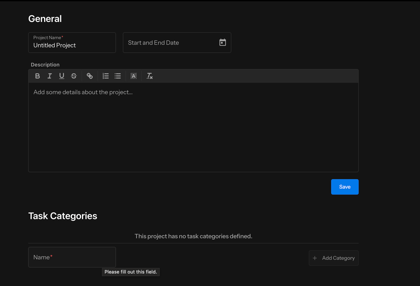
Adding Task Categories to a Project
- Go to the My Projects tab.
- Click + Add Project in the top right corner.
- Open Project Settings by clicking the settings toggle next to the untitled project name.
- Under the General section, find Task Categories.
- Add your categories and click Save.
Important Note: Tasks linked to Events appear in both the Project and the Event's "Tasks" section, keeping everything connected.
Collaboration Features
- Comments: Add notes and updates to any task using the Add Comment box to keep team communication in one place. Available on both mobile and desktop.
- Activity Feed: See every update made to a task in the Activity tab to track progress and changes over time.
Project Assets
Keep the links your team needs right on the project overview page. Use the Assets panel on the right-hand side to create sections and add asset links to each one, the same way you organize assets on the Artist Profile.
Adding asset links to a project
- Open the project from Projects.
- In the Assets panel on the right side of the overview page, create a new section.
- Name the section (e.g., “Creative Approvals,” “Final Masters”).
- Add asset links to the section by pasting in the URL.
Note: Project asset links live on the project overview.
My Tasks Dashboard
Click My Tasks in the navigation panel to see every task assigned to you, including:
- Tasks linked to events
- Tasks associated with projects
- Standalone tasks
This gives you a complete view of everything on your plate, no matter where the tasks came from.
Ready to dive deeper? Use the links below to explore specific features and learn advanced techniques for managing your projects, templates, and tasks.
LINKS: